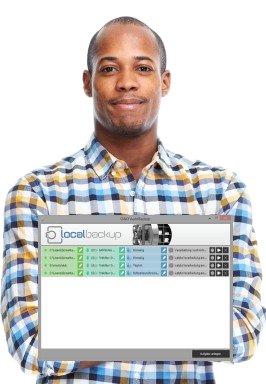

"This backup software simply protects my files and works for me!" — Maria T.
Reliable daily backup protection for your files.
Comprehensive Local Backup & Data Protection
Local Backup delivers professional automated backup solutions for protecting your valuable files, photos, videos, and documents. With intelligent scheduling, automatic synchronization, and seamless integration with external storage devices, Local Backup ensures your data remains safe and accessible whenever you need it.
Protect Your Valuable Data
Data loss from accidental deletion, hardware failure, or virus attacks can be devastating. Local Backup provides comprehensive protection by automatically backing up your important files to external storage devices with minimal user intervention.
Automatic Backups
Schedule backups to run automatically or trigger them instantly when you connect your backup device—no manual intervention required.
External Storage
Backup to USB drives, external hard disks, network drives, or any removable storage device with full versioning support.
Easy File Access
All backed-up files remain accessible through Windows Explorer in their original format—no special restoration software needed.
Reliable Protection
Safeguard against data loss from accidental deletion, hardware failures, malware attacks, or system crashes.
Intelligent Scheduling System
Local Backup's intelligent scheduling system is designed for users who want comprehensive data protection without complexity. The software adapts to your workflow, creating backups exactly when needed with minimal configuration.
Connection-Triggered
Backups start automatically when you connect your external device—perfect for on-demand protection.
Scheduled Backups
Configure daily, weekly, or custom schedules to ensure regular backup intervals without manual starts.
Instant Backup
Manually trigger backups any time you need immediate data protection—ideal after important work sessions.
Real-World Example: Import photos from your digital camera, connect your external drive, and Local Backup automatically detects and backs up the new files—all without clicking a button.
Automatic File Synchronization
Local Backup continuously monitors your specified files and folders, intelligently detecting changes and ensuring your backup storage remains synchronized with your working files.
How Synchronization Works
- Connect your external disk to your computer
- Local Backup automatically scans for changes in your selected files and folders
- Modified files are detected and compared with backup versions
- Only changed data is synchronized to your backup device—fast and efficient
Flexible Configuration
- Select individual files for targeted backup
- Backup entire folders with subdirectory support
- Backup complete disk partitions for full protection
- Exclude specific file types or folders as needed
Professional Features
Multiple Backup Types
- Full Backup: Complete copy of all selected data
- Differential Backup: Only changed files since last backup
- Synchronization: Mirror source to destination
Flexible Scheduling
- Device Connection: Auto-backup on USB connection
- Time-Based: Daily, weekly, or custom intervals
- Manual: On-demand backup anytime
Event Viewer & Logs
- Activity Logs: Complete history of backup operations
- Status Monitoring: Real-time backup progress tracking
- Error Reporting: Detailed information on any issues
User-Friendly Interface
- Simple Setup: Configure backups in minutes
- Intuitive Design: No technical expertise required
- Visual Feedback: Clear status indicators
Universal File Access
- Windows Explorer: Access backups like normal files
- No Special Tools: No proprietary restoration software
- Original Format: Files remain in native format
Version Control
- Multiple Versions: Keep historical file versions
- Change Tracking: See what changed and when
- Easy Recovery: Restore any previous version
Key Benefits
- Automatic backup on device connection
- Intelligent change detection & synchronization
- Multiple backup types (full, differential, sync)
- Files accessible via Windows Explorer
- Flexible scheduling options
- Version control for file history
Top Use Cases
- Photo Backup: Automatically backup photos after camera import
- Video Archives: Protect large video files on external storage
- Document Protection: Keep work documents safe with versioning
- Media Libraries: Backup music and media collections
- Project Files: Protect active projects with automatic sync
Backup Types
Full Backup
Complete copy of all selected files and folders. Ideal for initial backups or comprehensive archives.
Differential Backup
Backs up only files that changed since the last backup. Saves time and storage space.
Synchronization
Mirrors source to destination, keeping both locations identical. Perfect for working across devices.
System Requirements
- Windows 11, 10, 8.1, 8, 7, Vista, XP
- External storage device (USB, HDD, network)
- 512 MB RAM minimum
- Intel Pentium 4 or equivalent
Who Uses Local Backup?
Home Users
Protect family photos, videos, documents, and personal files with automatic backup to external drives.
Photographers
Automatically backup photo libraries and RAW files immediately after importing from cameras.
Small Businesses
Protect business documents, customer data, and project files with scheduled local backups.
Content Creators
Safeguard video projects, audio files, and creative work with version-controlled backups.
Need Help?
Learn more about Local Backup features and configuration options.