

"Brought back my hidden and forgotten passwords in seconds." — Paula M.
Recover hidden passwords for software programs.
Getting Started with Password Finder
Welcome to Password Finder! This comprehensive guide will walk you through the complete setup process, from initial download to full activation. Within minutes, you'll be recovering lost passwords and credentials from 108+ supported applications on your computer.
1
Download & Installation
Download the Password Finder Installer
Visit our download page to obtain the latest version of Password Finder. The installer is approximately 2 MB and downloads typically complete within seconds.
Complete the Installation
- Locate the downloaded file (typically in your Downloads folder)
- Double-click the installer to launch the installation wizard
- Follow the wizard prompts to select installation preferences
- Click "Install" to begin the installation process
- Complete the wizard and exit when installation finishes
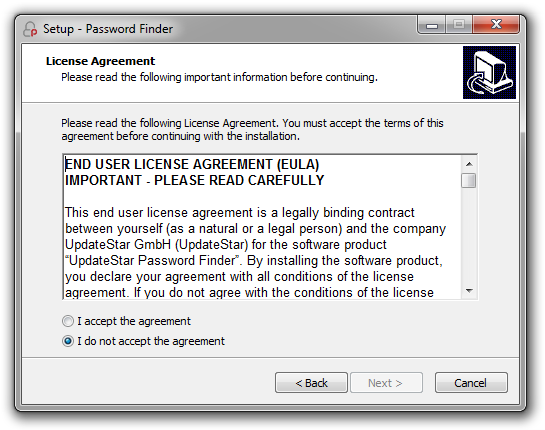
Launch the Application
After installation completes, launch Password Finder by double-clicking the desktop icon or selecting it from your Start menu. The application will open and display the main interface, ready for your first password scan.
2
Scan for Password Information
Password Finder automatically scans your computer for stored credentials from supported applications. The scanning process is fast, comprehensive, and non-intrusive.
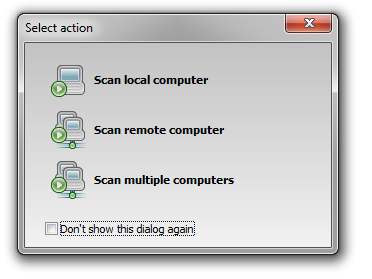
Initiate Your First Scan
Click the "Scan local computer" button on the main interface to begin scanning for passwords. Password Finder will search through:
- Web browsers (Chrome, Firefox, Internet Explorer, etc.)
- Email clients (Outlook, Thunderbird, Windows Mail)
- FTP clients (WinSCP, SecureFX)
- Instant messengers and other supported applications
3
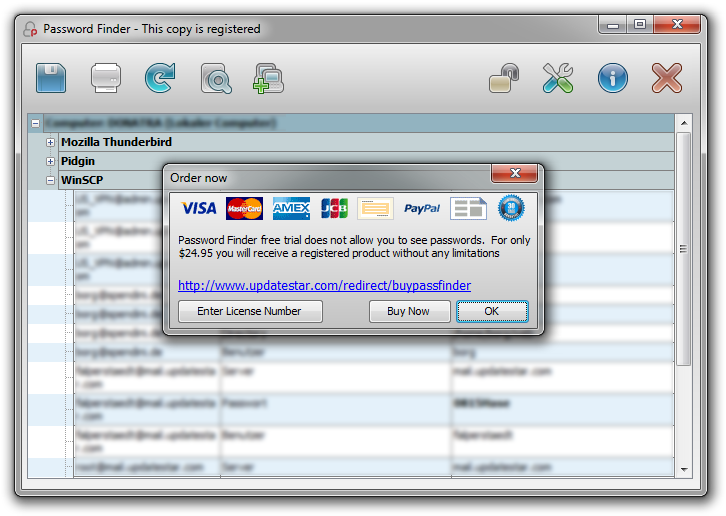
Upgrade to Full Version
Choose Your License
Activate Your License
After purchasing your license, you'll receive an email containing your personal license key and activation instructions.
- Check your email for the license key (usually arrives within minutes)
- Open Password Finder and access the main menu
- Select "Register" or "Enter License Key" from the menu
- Enter your license key exactly as provided in the email
- Click "Activate" to unlock full functionality
Next Steps & Advanced Features
Now that Password Finder is installed and activated, explore these powerful features to maximize its value:
Network Scanning
Scan remote computers on your network to recover passwords from multiple systems simultaneously. Ideal for IT administrators and system management.
Export Options
Export recovered passwords to various formats for backup, documentation, or migration to password management systems. Print results for offline storage.
Detailed Scanning
Configure scan settings to focus on specific application categories or perform comprehensive system-wide scans for thorough credential recovery.
Regular Updates
Keep Password Finder's application database current with automatic updates, ensuring compatibility with newly released software versions.
Quick Setup Checklist
- Download Password Finder installer
- Run installation wizard
- Launch Password Finder
- Perform initial password scan
- Review scan results
- Purchase license (if needed)
- Activate full version
Time Required
- Download: Under 1 minute
- Installation: 1-2 minutes
- First Scan: 30-60 seconds
- License Purchase: 2-3 minutes
- Activation: Under 1 minute
- Total Setup Time: Under 5 minutes
Trial vs Full Version
| Feature | Trial | Full |
|---|---|---|
| Scan for Passwords | ||
| View Complete Results | ||
| Export Passwords | ||
| Network Scanning | ||
| Technical Support |
System Requirements
- Windows 11, 10, 8.1, 8, 7, Vista, XP
- Intel Pentium 4 or equivalent
- 512 MB RAM minimum
- 10 MB disk space
- 32-bit and 64-bit support