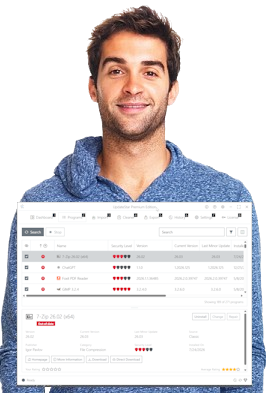


"I have been using UpdateStar for almost two years now. It delivers so many critical updates." — Steve S.
Ensures your software stays updated and protected.
With the new UpdateStar, immerse yourself in the assurance of a seamlessly secure and up-to-date computing environment. Our expansive database, featuring 1.8 million software titles, ensures your software is always enhanced with the latest upgrades, including those pivotal minor improvements. Stay secure with UpdateStar!
UpdateStar Help
Welcome to UpdateStar Help, the online help resource for UpdateStar Premium Edition and UpdateStar Freeware Edition users. If you cannot find an answer to one of your questions here, please send an email to our support team.
UpdateStar is the program that lets you stay up-to-date with all of your personal software you are using on your computer. You can use UpdateStar to look for available updates and manage all of your installations, install updates or uninstall programs on your computer.
An UpdateStar icon will appear in your system tray and display a notification when updates are available. This way you make sure to always use the most up-to-date software, maximizing your every-day user experience.
An UpdateStar icon will appear in your system tray and display a notification when updates are available. This way you make sure to always use the most up-to-date software, maximizing your every-day user experience.
UpdateStar simplifies your software life. It offers you an automated and complete one-stop information place for your complete software setup. Once UpdateStar informs you about an available update, you may inform yourself about the details of the software and you can decide to install the update with just a few clicks.
Yes! UpdateStar is available as Freeware and as a Premium version, meaning that you have the right to download and use UpdateStar for under the terms of the End User License Agreement.
Once installed, UpdateStar informs you about available upgrades for your installed programs. By default the UpdateStar icon will appear in your system tray and inform you, when an update for you is available. Simply click on the icon to learn more about the available update(s). To change the settings, please open the "Preferences" tab in your UpdateStar.
UpdateStar keeps you up-to-date regarding your software programs, freeware, shareware and Commercial software. If an available update is free or not depends on the licensing terms of each software vendor.
Yes. UpdateStar partnered with hundreds of software vendors and associated e-commerce partners to provide world-class services for UpdateStar users. UpdateStar offers competitive prices and special offers. You are free to choose from the UpdateStar online shop, directly from the software vendor or other trusted partners we work with.
The UpdateStar team tries to refinance all expenses by offering users convenient sales options within the application to keep UpdateStar a free service to the millions of users. Thanks to all the users and software buyers for supporting UpdateStar!
UpdateStar offers you an automated and complete one-stop information place for your complete software setup. This includes downloads as well as further options regarding your updates including the purchase of licenses. In the "Details" section for your specific product you can find also information about how to purchase a license.
Yes. We work with highly-trusted industry leading service companies. You have the option to acquire licenses from the UpdateStar online shop as well as from the original vendor website. To do so, simply use your preferred purchase option from within the product "Details" tab within UpdateStar.
Our "Easy & Secure Guarantee" assures you that purchasing software through UpdateStar is proven easy & secure. UpdateStar partnered with hundreds of trusted software vendors and is associated with industry leading e-commerce partners to provide world-class services for UpdateStar users.
UpdateStar offers competitive prices as well as special offers: UpdateStar provides you with excellent product prices combined with your familiar online shopping experience. You are free to purchase from the UpdateStar online shop, directly from the software vendor or other trusted partners we work with.
To do so, simply use your preferred purchase option from within the product "Details" tab within UpdateStar.
UpdateStar offers competitive prices as well as special offers: UpdateStar provides you with excellent product prices combined with your familiar online shopping experience. You are free to purchase from the UpdateStar online shop, directly from the software vendor or other trusted partners we work with.
To do so, simply use your preferred purchase option from within the product "Details" tab within UpdateStar.
UpdateStar runs with Windows 11, 10, and 8.
You can easily install available updates for your programs at any time. To do so, please follow these steps:
The "Details" Section provides you with more details about each program, download links and licensing links.
- Double-click the UpdateStar icon in your Windows system tray.
- Once open, select the "Program List" view. This way you can easily recognize and filter program with available updates waiting.
- The program list shows you available software updates for your current installations.
- Now you can choose to download and install specific updates from the program list.
The "Details" Section provides you with more details about each program, download links and licensing links.
You can easily customize UpdateStar. To select and deselect the programs you would like to receive update information about, please follow these steps:
From now on UpdateStar will only inform you of available updates for the selected programs.
- Open UpdateStar, e.g. by double-clicking the UpdateStar icon in your Windows system tray.
- Switch to the UpdateStar "Program List" view and make sure to activate the Program List column "Search for Updates".
- Now you may activate and deactivate the "Search for Updates" function for each program individually in the Program Listing according to your needs.
From now on UpdateStar will only inform you of available updates for the selected programs.
UpdateStar uses a learning software database. If your program is not yet recognized by UpdateStar, then it is already marked for inclusion. Due to the high number of available software products world-wide, this may take a few days. In a short while UpdateStar should also recognize your program.
When downloading a program, please remember where you saved the download file. Once the download process has finished, you may start the update installation double-clicking on the downloaded file.
UpdateStar is currently not available for Mac OS. We may consider to offer a Mac version in the future.
Yes, UpdateStar runs with 64-bit Windows systems.
If you are using a proxy server to connect to the internet, you may to configure the details in your UpdateStar preferences. This allows you to connect to the internet. To configure your proxy server detail, please follow these steps:
Please contact your system administrator, if you are unsure about your proxy server configuration.
- Open UpdateStar, e.g. by double-clicking the UpdateStar icon in your Windows system tray.
- Go to the UpdateStar "Settings" and click on the "Connection" tab.
- Select "Manual Proxy Configuration. There you can enter your proxy information.
- Click "OK" to save the changed configuration.
Please contact your system administrator, if you are unsure about your proxy server configuration.
As the UpdateStar project is a freeware project, we ask you for a little patience with answering your e-mail request. Nonetheless we do our best to answer every e-mail request you send us.
The UpdateStar team consists of developers who have a long experience and are passionate about developing software for the Windows platform. See the About Us section on the UpdateStar website to learn more or get in contact with us. You are always welcome.
Please submit your ideas and request here [MAILTO:we_care@UpdateStar.com].
Yes. To use UpdateStar you do not need administrative rights.
UpdateStar simplifies your software life. It offers you an automated and complete one-stop information place for your complete software setup. Once UpdateStar informs you about an available update, you may inform yourself about the details of the software and you can decide to install the update with just a few clicks.
The UpdateStar icon may be hidden in the notification area. This can be the case if you have a large number of icons in the notification area of the task bar. To show the hidden icons click the arrow on the left edge of the notification area.
UpdateStar informs you about available updates for your personal software setup. You decide which of the available updates you wish to install and license. You can also configure UpdateStar individually according to your needs to only inform you about specific program updates available.
Please note: For security related programs, e.g. Internet security software, we always recommend to always use the latest program versions.
Please note: For security related programs, e.g. Internet security software, we always recommend to always use the latest program versions.
Yes. UpdateStar also acts as an improved "Add or Remove Programs" and uses the same Windows integrated functionalities as "Add or Remove Programs". UpdateStar uses the program dependend deinstallation routines like "Add or Remove Programs" does, so no worries.
UpdateStar acts as a powerful and improved "Add or Remove Programs". Simply use UpdateStar as you would use "Add or Remove Programs". It uses the same Windows integrated functionalities like "Add or Remove Programs". It is as safe to manage your programs setup with UpdateStar as with "Add or Remove programs".
To uninstall a program using UpdateStar, please follow these steps:
To uninstall a program using UpdateStar, please follow these steps:
- Open UpdateStar, e.g. by double-clicking the UpdateStar icon in your Windows system tray.
- Select the program you want to uninstall from the Program List view.
- Now you may select "Uninstall" from the Details section of the selected program.
The location where downloaded software is installed depends on the setup method of each individual software package. For most software packages this means you get to choose where the software is installed during the installation process.
UpdateStar runs with Windows 10, 8, 7, Vista and XP.
Yes, UpdateStar offers you to review your installation history. To do so, follow these steps:
- Open UpdateStar
- Click History on the Action tab.
No, the installation and uninstallation of UpdateStar does not affect other software programs.
But why would anyone want to uninstall UpdateStar?
But why would anyone want to uninstall UpdateStar?
Yes, UpdateStar makes sure that you are always using the up-to-date version to optimize your user experience with UpdateStar.
We are constantly improving UpdateStar. UpdateStar is able to update itself. Once the message appears, accept the update and the download will be initiated in the background. This may take a few minutes.
After the download was finished, UpdateStar will ask to be allowed to close. You have to accept that to let UpdateStar install the new version in the background. Once the update is finished, UpdateStar will automatically start all over.
After the download was finished, UpdateStar will ask to be allowed to close. You have to accept that to let UpdateStar install the new version in the background. Once the update is finished, UpdateStar will automatically start all over.
You can update your programs at any time. To do so, please follow these steps:
- Double-click the UpdateStar icon in your Windows system tray.
- Once open, select the "Program List" view. This way you can easily recognize and filter programs with available updates waiting.
- The program list shows you available software updates for your current installations.
- Now you can choose to download an update from the program list. The "Details" Section provides you with more details about each program, download links and licensing links.
In the "Preferences" section you can configure several options for your personal setup of UpdateStar. You can define when to check for newly available updates as well as the automatic start with the launch of Windows.
To set your own UpdateStar preferences, please follow these steps:
Click "OK" once you are finished configuring the settings.
To set your own UpdateStar preferences, please follow these steps:
- Open UpdateStar, e.g. by double-clicking the UpdateStar icon in your Windows system tray.
- Once open, select "Preferences" form the "Action" tab to view your settings.
- Now you can choose to change the settings according to your needs.
Click "OK" once you are finished configuring the settings.
Our UpdateStar program database is "made by the users for the users". If a program is not yet recognized by UpdateStar, it might currently be reviewed by our team. In a short while the newly available update should also be shown by UpdateStar.
There are some more reasons why UpdateStar might not show an available update. For example we do not include pre-release alpha or beta software. UpdateStar provides its users only with stable non-beta programs.
There are some more reasons why UpdateStar might not show an available update. For example we do not include pre-release alpha or beta software. UpdateStar provides its users only with stable non-beta programs.
UpdateStar is currently not available for Linux. We may consider to offer a Linux version in the future.
Yes, UpdateStar runs with 64-bit Windows systems.
UpdateStar offers you an automated and complete one-stop information place for your complete software setup. By default UpdateStar checks for updates regarding your individual software setup automatically. The UpdateStar icon will appear in your system tray and inform you, when an update for you is available for download. Simply click on the icon to learn more about the available update.
UpdateStar offers you more information options about an available update in the details section. Simply click on the program within the "Program List" in UpdateStar and the details section offers you more links for more information, e.g. on the vendors website. You can easily make use of the information links to find out, if your language version is already available.
You can select and deselect the programs you would like to receive update information about:
- Open UpdateStar, e.g. by double-clicking the UpdateStar icon in your Windows system tray.
- Go to the UpdateStar "Action" tab using the "Program List" view and make sure to activate the Program List column "Search for updates".
- Now you may activate and deactivate the "Search for Update" function for each program individually in the Program List.
When downloading a program, please remember where you saved the download file. Once the download process has finished, you may start the update installation double-clicking on the downloaded file.
Troubleshooting
You have done everything right. UpdateStar receives all information regarding 'Installed version' from the third-party programs, for example from the Windows Registry. Unfortunately some software vendors do not pay attentiona and lack accuracy when offering updates. In this case UpdateStar still receives the older version information from the third-party product. Thanks to the high number of UpdateStar users, many software vendors already mmade their products UpdateStar compliant. If you find a software delivering a false 'Installed version', feel free to contact the technical support of this specific product. This allows the vendor to become UpdateStar compliant.
We can assure you that UpdateStar is free from malicious code. You might contact your security program vendor's support team to get a detailed answer, as we have no influence on the accuracy of third-party security programs.
Please inform us if this has happened to you, as we are also interested to prevent such cases in the interest of our users. It would be helpful if you could send us the following information:
Thank you for your help.
Please inform us if this has happened to you, as we are also interested to prevent such cases in the interest of our users. It would be helpful if you could send us the following information:
- Name of your security program.
- The content of the alert, e.g. flagged file or folder.
Thank you for your help.
Your firewall software controls all programs that want to connect to the internet. To receive update information from UpdateStar you have to allow UpdateStar to connect to our servers to deliver the desired information. Your security software should easily let you configure these rules. Usually a simple acceptance of a firewall request will do.
We can assure you that UpdateStar runs as an anonymous free service and is only active according to the user wishes. You might contact your security program vendor's support team to get a detailed answer, as we have no influence on the accuracy of third-party security programs.
Please inform us if this has happened to you, as we are also interested to prevent such cases in the future in the interest of our users. It would be helpful if you could send us the following information:
Thank you for your help.
Please inform us if this has happened to you, as we are also interested to prevent such cases in the future in the interest of our users. It would be helpful if you could send us the following information:
- Name of your security program.
- The content of the alert, e.g. flagged file or folder.
Thank you for your help.
As we are using UpdateStar servers as well as trustworthy external vendor sources, there might be a temporary problem with a specific vendor server. Please try again later. If the problem persists, please inform the UpdateStar team. As our UpdateStar program database is "made by the users for the users" we highly depend on your feedback. The UpdateStar team (and the other users) appreciate it!
It would be helpful if you could send us the following information:
Thank you for your help.
It would be helpful if you could send us the following information:
- Name of the program you tried to download.
- The content of the error message you received.
Thank you for your help.
UpdateStar provides you with the most up-to-date software for your individual software setup. If you run into a problem with an installation of an update for one of your programs, it is caused by the third-party program. Please refer to the error message and follow the instructions, if there are any. Please contact the support team of the software vendor to receive help.
UpdateStar requires an internet connection to check for available updates, offer downloads and installation of your individual software setup. If you receive this message, please check if your internet connection is active and correctly working. UpdateStar provides you with the most up-to-date software for your individual software setup. If you run into a problem with an installation of an update for one of your programs, it is caused by the third-party program. Please refer to the error message and follow the instructions, if there are any. Please contact the support team of the software vendor to receive help.
This error message appears, because there is a problem with file associations on your system or the standard browser settings. Please check your standard browser settings.
When clicking on a download link, your standard web browser should open. If you receive an error message "This file does not have a program associated with it to performing this action." there is a problem with file associations on your system or the standard browser settings. Please check your standard browser settings.
Vista users find help regarding default programs on the Microsoft website.
XP users find help regarding default programs on the Microsoft website.
Vista users find help regarding default programs on the Microsoft website.
XP users find help regarding default programs on the Microsoft website.
When clicking on a download link, your standard web browser should open with the requested webpage. Some internet security programs do not allow external applications to open the web browser. Please check your security settings.
You did everything right. And your program installation is most probably doing fine. All “Installed version” information always is delivered by the program itself (from within the Windows Registry). Some programs do deliver short or simply outdated version information, although showing it correctly, when started. The UpdateStar software recognition algorithms are being developed further to also cover the programs sending irregular version information.
Other Questions
The program is up-to-date.
There is a newer version available for this program.
UpdateStar recognizes the program, but was not able to identify the installed version.
The program is unknown in the UpdateStar database.
There is a newer version available for this program.
UpdateStar recognizes the program, but was not able to identify the installed version.
The program is unknown in the UpdateStar database.
UpdateStar is available with several languages versions. We strive to offer it in more languages in the future. Please check on our localization webpage, which language versions are available. To translate your own language file, please follow the easy to use localization instructions page.
When the UpdateStar freeware client performs an automatic check for an available update for a program on a user's PC, we call this "scrobbling" an installation.
No, UpdateStar only checks updates for those programs installed under Windows.
If the UpdateStar icon is missing in the Windows system tray, you might have denied this option when you installed UpdateStar. UpdateStar cannot notify you about available updates via the system tray icon. You may uninstall UpdateStar from your Add/Remove Programs window. You can find Add/Remove Programs via "Start/Settings/Control Panel". Once uninstalled simply reinstall UpdateStar and make sure to allow the UpdateStar icon to appear in the task tray, within the installation process.
UpdateStar is serious about protecting your private sphere. This privacy policy statement concerns UpdateStar and the use and compilation of data. You can find out more about the UpdateStar privacy policy here.
Yes, using UpdateStar is anonymous and follows our privacy policy. We never ask for any personal data of yours, such as your name or e-mail address. You can find out more about the UpdateStar privacy policy here.
We can assure you that UpdateStar is free from malicious code. You might contact your security program vendor's support team to get a detailed answer, as we have no influence on the accuracy of third-party security programs.
Please inform us if this has happened to you, as we are also interested to prevent such cases in the interest of our users. It would be helpful if you could send us the following information:
Thank you for your help.
Please inform us if this has happened to you, as we are also interested to prevent such cases in the interest of our users. It would be helpful if you could send us the following information:
- Name of your security program.
- The content of the alert, e.g. flagged file or folder.
Thank you for your help.
As we are using UpdateStar servers as well as trustworthy external vendor sources, there might be a temporary problem with a specific vendor server. Please try again later. If the problem persists, please inform the UpdateStar team. As our UpdateStar program database is "made by the users for the users" we highly depend on your feedback. The UpdateStar team (and the other users) appreciate it!
It would be helpful if you could send us the following information:
Thank you for your help.
It would be helpful if you could send us the following information:
- Name of the program you tried to download.
- The content of the error message you received.
Thank you for your help.
UpdateStar offers you an automated and complete one-stop information place for your complete software setup. You receive update information regarding tens of thousands of commercial, shareware and freeware programs.
UpdateStar offers you an automated and complete one-stop information place for your complete software setup. This includes downloads as well as further options regarding your updates including the purchase of licenses. In the "Details" section for your specific product you can find also information about how to purchase a license.
Purchasing a product through UpdateStar is secure. We work with highly-trusted industry leading service companies. You may have the option to acquire licenses from the UpdateStar online shop as well as from the original vendor website. To do so, simply use your preferred purchase option from within UpdateStar.
Purchasing a product through UpdateStar is secure. We work with highly-trusted industry leading service companies. You may have the option to acquire licenses from the UpdateStar online shop as well as from the original vendor website. To do so, simply use your preferred purchase option from within UpdateStar.